
Archiving an order on Amazon has long been the quickest way to hide a purchase from the eyes of a loved one or simply to declutter one’s history. In 2025, this feature remains available on the website, but its actual effectiveness in terms of privacy is questionable. Archiving does not delete anything: neither confirmation emails, nor push notifications, nor the ability to find the order through the account’s search filters.
What Amazon archiving does not hide
When you archive an order, it disappears from the default list in “My Orders.” Anyone who accesses the account can find it in seconds via the “Archived Orders” menu or by typing the product name in the internal search bar.
The traces left by a purchase go far beyond the orders page. Confirmation and shipping emails remain in the inbox associated with the account. Alexa notifications can announce the delivery status aloud. Push notifications on the mobile app mention the product name.
Archiving moves the order; it does not make it invisible. For anyone actively seeking information about a purchase, the barrier is thin. This distinction between visual masking and actual deletion is the point that most guides on the subject do not clarify enough. Those looking to archive an Amazon order in 2025 often discover this limitation afterward.

Archiving an Amazon order on browser and mobile app
The procedure has remained the same for several years on the website. Open the “My Orders” page, locate the relevant order, and click “Archive Order” in the associated dropdown menu. The order then moves to the “Archived Orders” section, accessible from the same menu.
On the Amazon mobile app
The mobile app does not always prominently display the archiving button. Depending on the app versions and regions, the option may be absent from the mobile interface. In this case, you need to use a web browser on your smartphone (Safari, Chrome) and access the desktop site of Amazon to find the function.
This point deserves attention. Some interfaces seem to gradually remove the archiving option or make it less accessible. User feedback varies on this point: some users find it without difficulty, while others report its temporary or permanent disappearance from their version of the app.
Unarchiving an order
To find an archived order, go to “My Orders,” then use the filter or search to display archived orders. You can then unarchive them to return them to the main list. No order is permanently hidden by this mechanism.
Protecting the privacy of an Amazon purchase beyond archiving
If the goal is truly to keep a purchase confidential (gift, personal purchase), archiving alone is not enough. A more comprehensive approach involves addressing every channel where Amazon disseminates the information.
- Delete or move confirmation and shipping emails from the main inbox, or create an automatic filter that redirects them to a separate folder
- Disable push notifications from the Amazon app in the phone settings to prevent a product title from appearing on the lock screen
- Disable Alexa voice announcements related to deliveries if an Echo device is present in the household
- Check the “Inspired by Your Purchases” section on the Amazon homepage, which may suggest products similar to those recently ordered
Separating uses remains the most reliable method. Creating a second Amazon account dedicated to sensitive purchases, with a distinct email address, eliminates the risk of another user on the main account stumbling upon the history. This approach requires managing two accounts but severs the link between the purchase and the shared profile.
Amazon history and traceability: the underlying trend
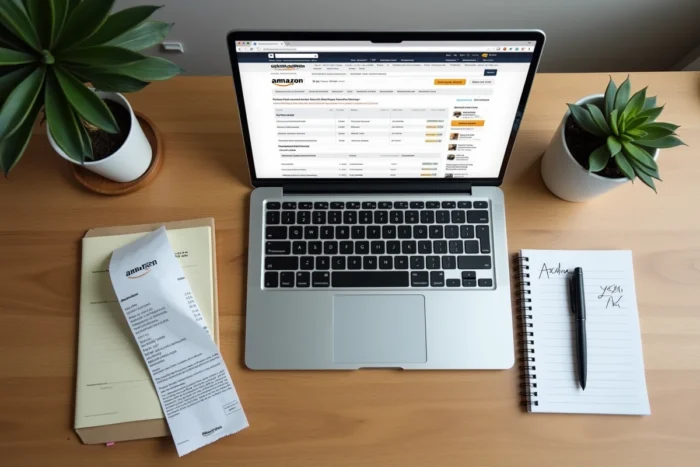
Amazon invests in the traceability and visibility of purchases, not in their concealment. The tools developed for Amazon Business enhance centralized management of history, order analysis, and extensive tracking. The platform values the retention of purchase data, which runs counter to those seeking to erase their tracks.
On a personal account, there is no “delete an order” function from the history. Archiving is the maximum offered. However, you can remove items from the “Recently Viewed Items” list and manage your recommendations to limit visible clues on the homepage.
Invoices and proof of purchase
Even archived, an order remains accessible for printing the invoice or tracking a potential return. Amazon retains the entire order history without a known duration limit. This permanence is useful for warranty tracking, but it means that no order truly disappears from the account.
Known limitations and cases where archiving fails
Several situations render archiving ineffective or impossible:
- Orders placed through Amazon Household may be visible to other adult members of the household, archived or not
- Digital purchases (Kindle, apps) leave traces in the digital library of the account, regardless of the archiving of the order
- Packages delivered to a shared address create a physical trace that digital archiving cannot mask
For digital purchases in particular, the purchased content remains visible in the library associated with the account. Archiving the order does not remove a book from the Kindle library or an app from the list of digital purchases.
Archiving on Amazon serves a sorting role, not a privacy one. For a truly sensitive purchase, combining a separate account, a dedicated email address, and delivery to a pickup point offers a level of discretion that no native function of the main account can match.